
Most of us unlock our phones dozens of times a day, and entertainment apps are built to keep us there. Hockey highlights, mobile games, streaming services and online casinos all compete for the same evening hours. Whether you follow every NHL game on your phone or occasionally play at the Aerobet casino in Canada after work, iOS already includes tools that let you decide in advance how much time those apps get. This guide shows how to set them up so they help rather than nag, using features available on any recent iPhone.
Start With an Honest Look at Your Screen Time Report
Before changing anything, look at the numbers. Open Settings, tap Screen Time and then App & Website Activity. The weekly view shows how many hours you spent on the phone, which categories took the most time and how often you picked the device up. Many people are surprised less by the total than by the pattern: twenty short checks during a workday, or a long block of gaming that starts at 10 p.m. and runs well past midnight.
Write down two or three observations instead of trying to fix everything at once. A note such as “games after 11 p.m. on weeknights” or “Instagram during lunch” gives you a specific target. The iPhone also sends a weekly summary notification, which works well as a quick progress check once your new settings are in place.
Set App Limits That Match Real Life
App Limits let you cap the daily time for a category, an individual app or a website in Safari. Go to Settings, Screen Time, App Limits and tap Add Limit. You can choose a whole category such as Games or Entertainment, or pick individual apps. When the limit is reached, a screen appears and you decide whether to stop or ask for more time.
A few rules of thumb make limits easier to live with:
- Set limits slightly above your current average, then lower them gradually. A cut that is too sharp gets ignored within days.
- Use different limits for weekends with the Customize Days option, because a Saturday afternoon is not the same as a Tuesday night.
- Add websites, not just apps. If you play or stream in Safari, the app limit alone will not cover it.
- Turn on a Screen Time passcode if you want the limit to feel firm. Choose a code you will not instantly remember, or ask a partner to set it.
Limits are a reminder, not a punishment. The point is to make you notice the moment when “five more minutes” turns into an hour.
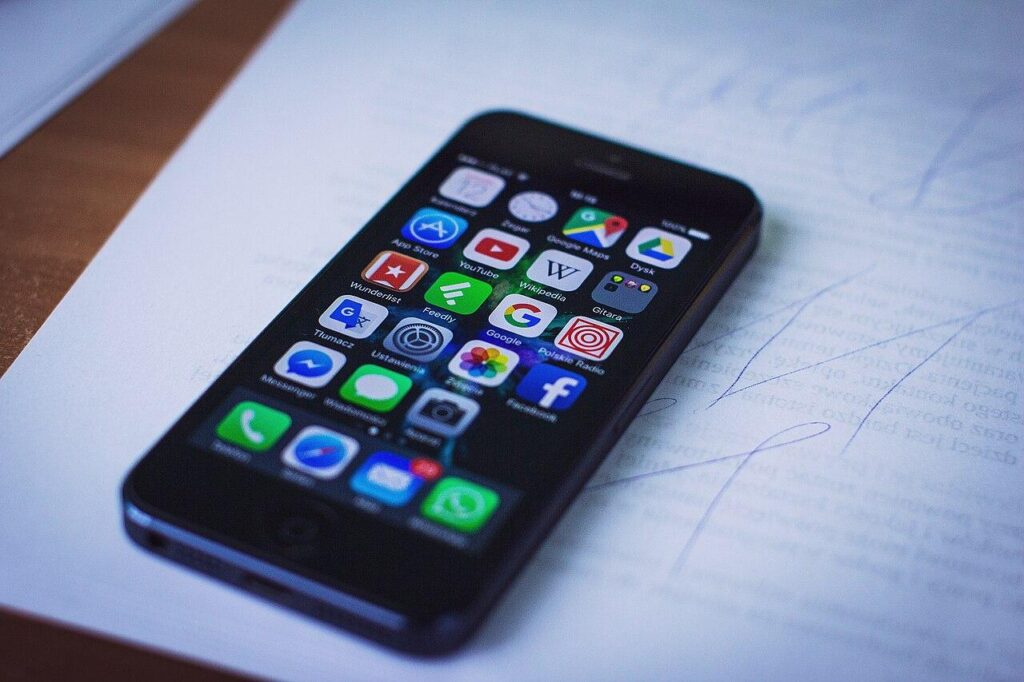
A tidy home screen makes it easier to see which apps you actually use every day. Image: freestocks.org from Olsztyn, Poland, CC0, source: Wikimedia Commons.
Use Focus Modes to Separate Work, Rest and Play
Focus modes go further than Do Not Disturb. In Settings, Focus, you can create profiles such as Work, Personal or Sleep and choose which people and apps may send notifications in each one. You can also link a Focus to a schedule or a location, so it switches on automatically when you arrive at the office or when it is time to wind down.
One underused feature is the ability to show a specific Home Screen page for each Focus. During work hours, your phone can display only calendar, mail and maps. In the evening, a Personal Focus can bring back games and streaming apps. This small change removes a lot of temptation, because the icons you do not see are the apps you do not open on autopilot.
A Simple Evening Setup
Many people find that one well-designed evening Focus does more than a long list of rules. Here is a configuration that works for a typical weeknight:
Tame Notifications Before They Tame You
Notifications are the main reason we pick up the phone without a plan. Open Settings, Notifications, and go through the list app by app. Ask a simple question for each one: does this alert need my attention right now? Messages from family probably do. Promotional pushes from games, shops and streaming apps rarely do.
For apps you want to keep but not hear from constantly, use Scheduled Summary. It collects non-urgent notifications and delivers them in a bundle at the times you choose, for example 8 a.m. and 6 p.m. You can also turn off Time Sensitive Notifications for apps that abuse them. After a week, most people notice that they check the phone less often without missing anything important.
|
Setting |
Where to find it |
Best used for |
|
App Limits |
Settings, Screen Time |
Daily caps for games, streaming and social apps |
|
Downtime |
Settings, Screen Time |
Blocking most apps during set hours |
|
Focus |
Settings, Focus |
Separating work, personal time and sleep |
|
Scheduled Summary |
Settings, Notifications |
Bundling non-urgent alerts |
|
Grayscale |
Settings, Accessibility, Display and Text Size |
Making the screen less attractive late at night |
Keep Money and Entertainment Clearly Separated
Entertainment that involves spending needs extra care. Games with in-app purchases, subscription services and real-money platforms should never be one tap away from a payment. In Settings, under your Apple Account, Media and Purchases, you can require a password for purchases. Turning on Face ID or a passcode for Apple Pay adds a deliberate pause before money leaves your account.
For online casino entertainment, set your budget before you open the app, not during play. Aerobet, for example, combines slots, live dealer games, crash games and sports betting on one site and works in a mobile browser, so it is easy to drop in for a few minutes that quietly become an hour. Treat it like any other evening activity with a fixed cost: decide the amount and the end time first, use any deposit or session limits your account offers, and add a Safari limit for the site in Screen Time.
The legal age for this kind of entertainment in Canada is 18 or 19 depending on the province, and every province has free, confidential responsible gaming support for anyone who feels that play is no longer fun. Many banks also let you block or cap gambling transactions on a card, which gives you one more safety net outside the phone.

Evening is when most entertainment apps compete for attention, so it is the best time to have clear settings in place. Image: Shixart1985, CC BY 2.0, source: Wikimedia Commons.
Review and Adjust Every Few Weeks
Settings that feel right in January may not suit a busy spring. Put a recurring reminder in your calendar for every third or fourth week and look at your Screen Time report again. If a limit is constantly ignored, it is probably unrealistic, so raise it slightly and keep it rather than deleting it. If a Focus mode feels too strict, allow one or two more apps. Seasonal changes matter as well: playoff weeks, holidays and long winter weekends naturally bring more screen time, so plan for them instead of treating every exception as a failure.
The goal is not to use the iPhone less for its own sake. It is to make sure that games, streaming and other entertainment fit into your day by choice. With a few minutes of setup, the phone stops deciding for you, and your evenings feel like your own again.